Back to press releases and articles

Editing a Student Grade – FlatWorld Homework
Instructors can edit and delete students’ grades in FlatWorld Homework. Here’s how: 1) Login to your FlatWorld instructor account and navigate to the desired course in FlatWorld Homework 2) You may edit a grade at the Assignment level. Select the assignment for which you wish to change a student’s grade. 3) After selecting the assignment, click on the Grades…
Instructors can edit and delete students’ grades in FlatWorld Homework. Here’s how:
-
Login to your FlatWorld instructor account and navigate to the desired course in FlatWorld Homework
-
You may edit a grade at the Assignment level. Select the assignment for which you wish to change a student’s grade.
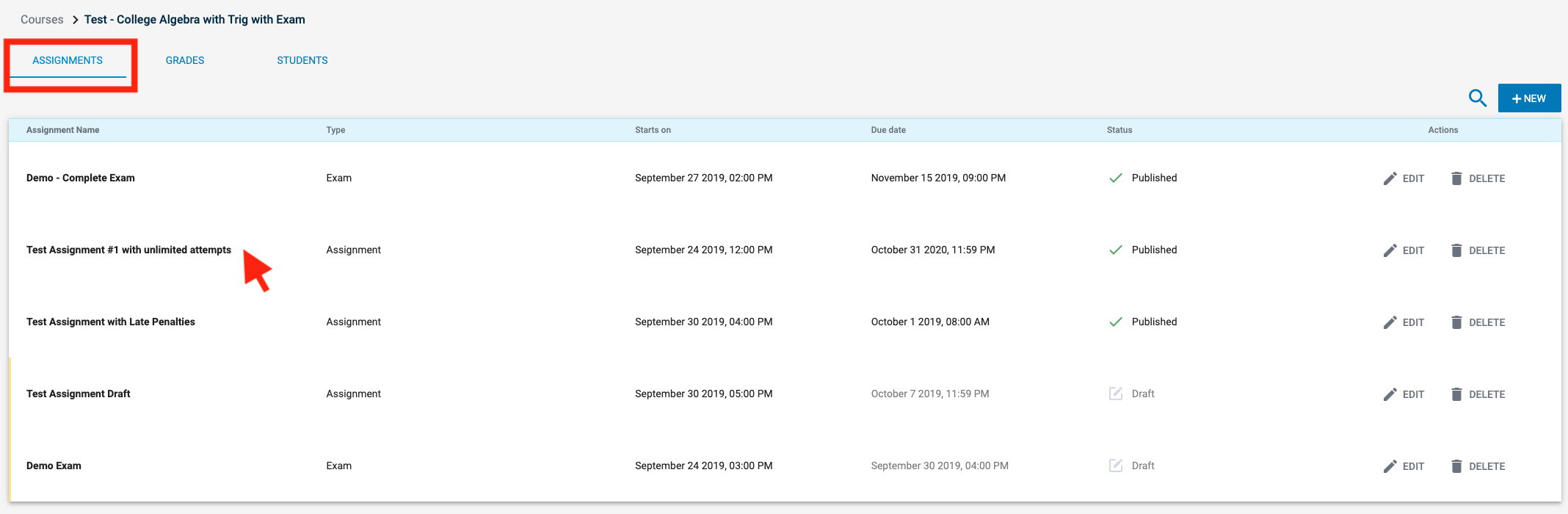
- After selecting the assignment, click on the Grades tab. The Edit Grades option is found in the “Actions” column.

In this example, this student’s grade is currently 40%, or 2 out of 5 questions were correct.
- Clicking Edit for that student will bring up the Edit Grade options. You are able to add or subtract points, write a note on why the grade was changed, and restore the original grade after you have made edits.
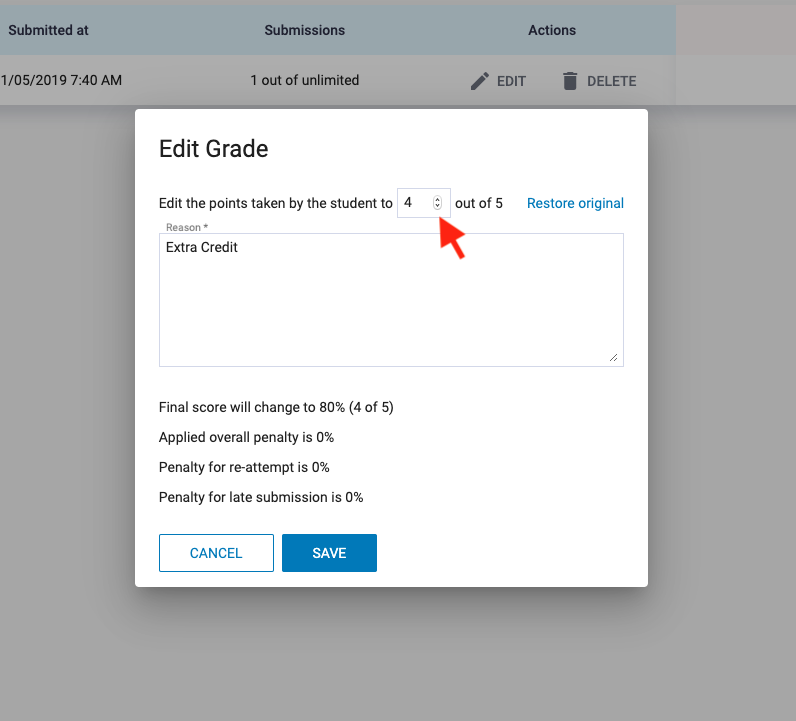
In this example, we have updated the student’s grade two points with a reason given of extra credit.
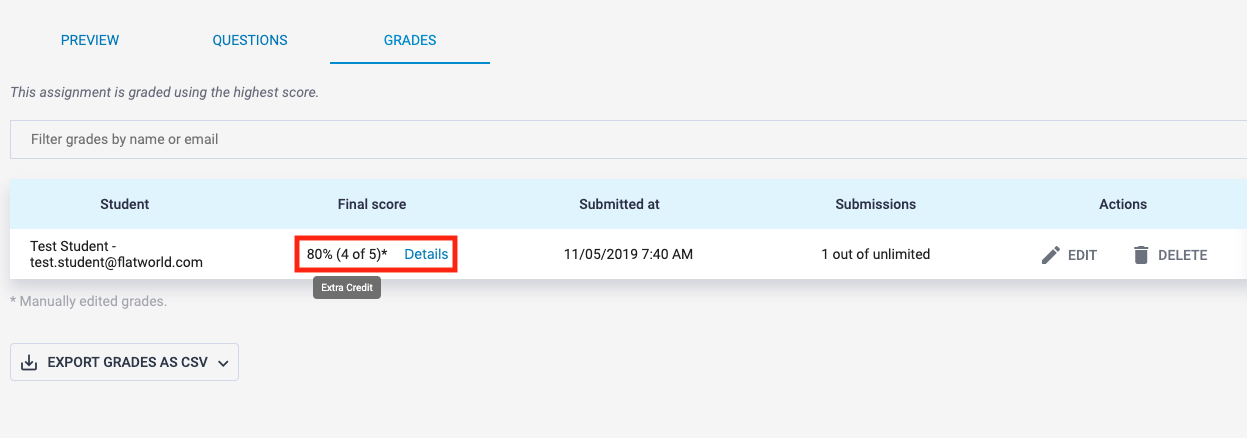
- The student’s final score is now 4 out of 5, or 80%. A manually edited grade will be denoted by an asterisk *. You can move your cursor over this asterisk to pull up any notes on the grade change_._